

Need to create a QR code, clean up copied text, split a dinner bill, or take a quick gaming break?
That’s what Hunyango is for.
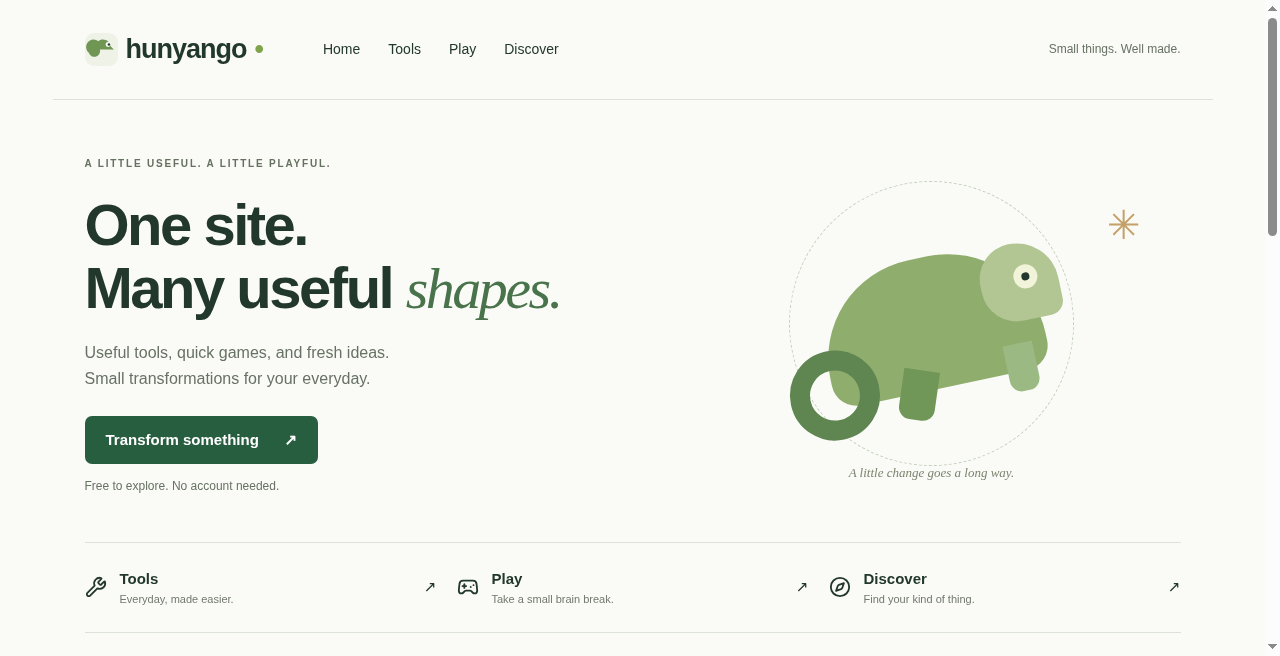
I just launched Hunyango as a free collection of online tools and browser games for those small moments when you want to get something done—or enjoy a little change of pace. One bookmark, many shapes.
The name means chameleon in Filipino. It fits the idea behind the site: one place that adapts depending on what you need next.
There are currently 10 everyday tools, four games, and a Gift Finder. Below is what each one does, with screenshots so you can see the interface before you click through.
Want to jump straight in? Explore Hunyango’s tools or pick a browser game.
Free Online Tools for Writing and Sharing
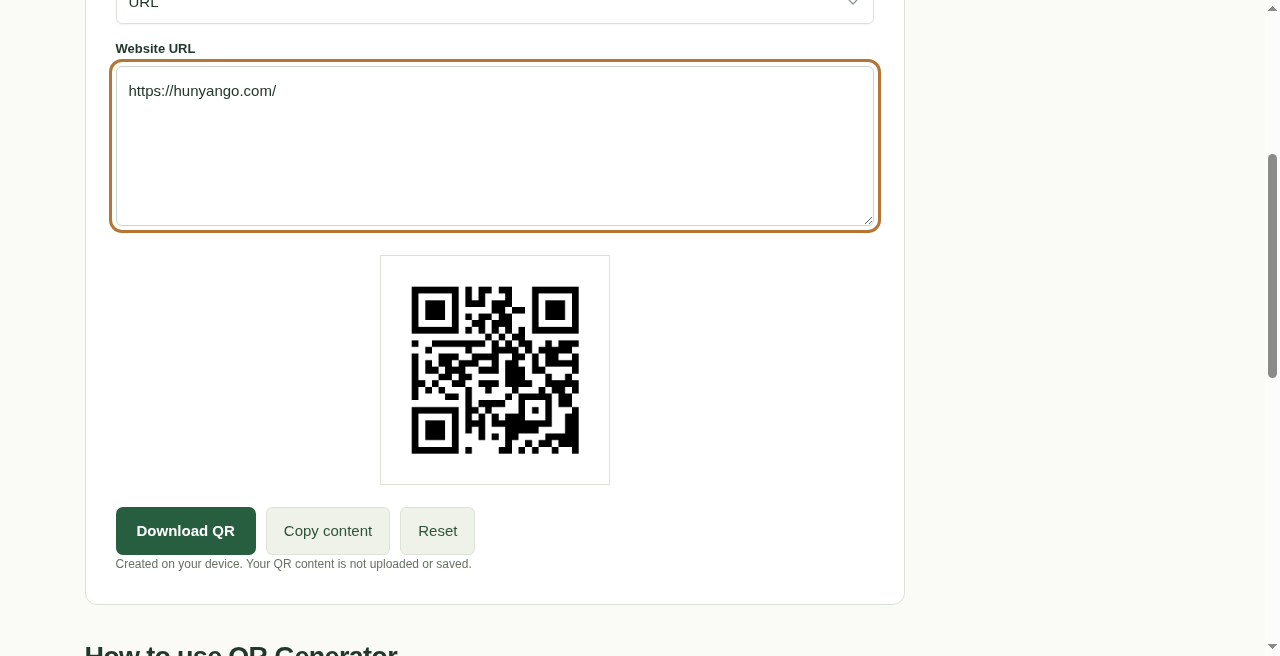
1. QR Generator: Make Something Easy to Scan
A website address is useful. A QR code can make it easier to share on a printed flyer, presentation, or sign.
Hunyango’s free QR code generator turns website URLs, plain text, email addresses, and phone numbers into downloadable PNG images.
Use it to point people toward your portfolio, share an event page, or provide a quick way to contact you. Generate the code, download it, and test it with your phone before printing.
The code itself doesn’t expire, although a website it points to can change or disappear.
2. Word Counter: Check More Than Your Word Count
Writing a blog post, school assignment, speech, or social caption?
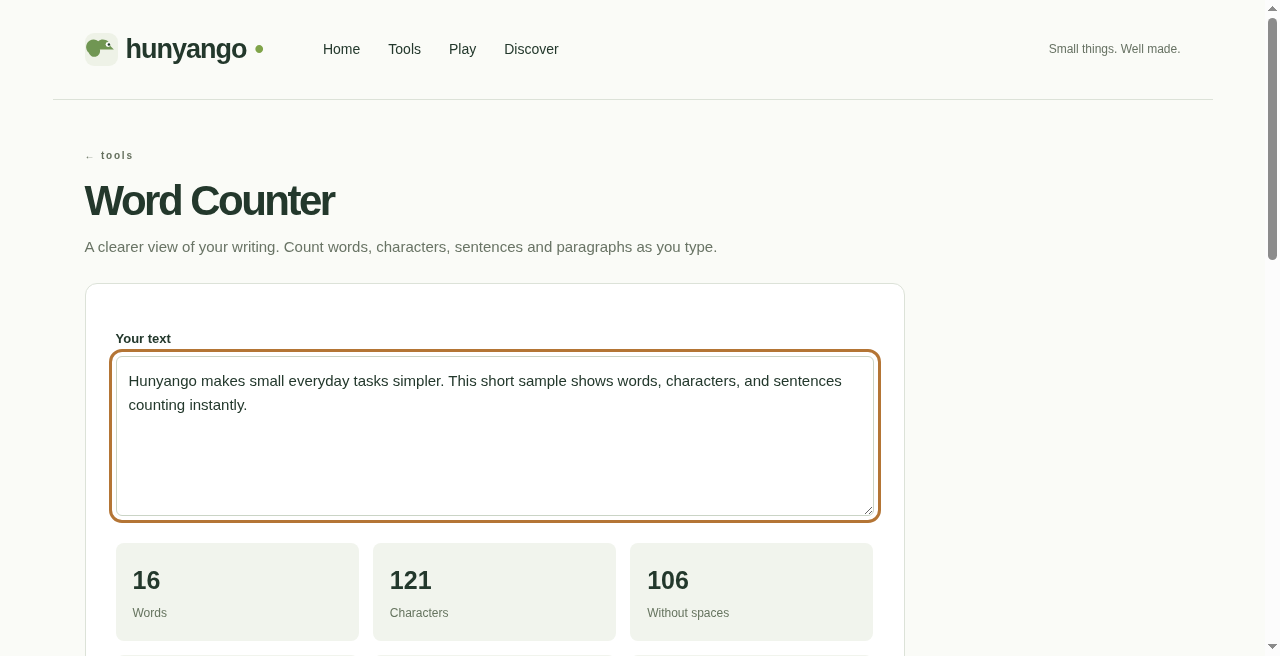
The online Word Counter shows words, characters, characters without spaces, estimated sentences, paragraphs, and estimated reading time.
It’s handy when you need to meet a word limit or check whether a draft has grown longer than intended. Paste your text and see the counts update immediately.
3. Case Converter: Fix Capitalization Without Retyping
Accidentally typed a paragraph in ALL CAPS? Need to tidy a heading?
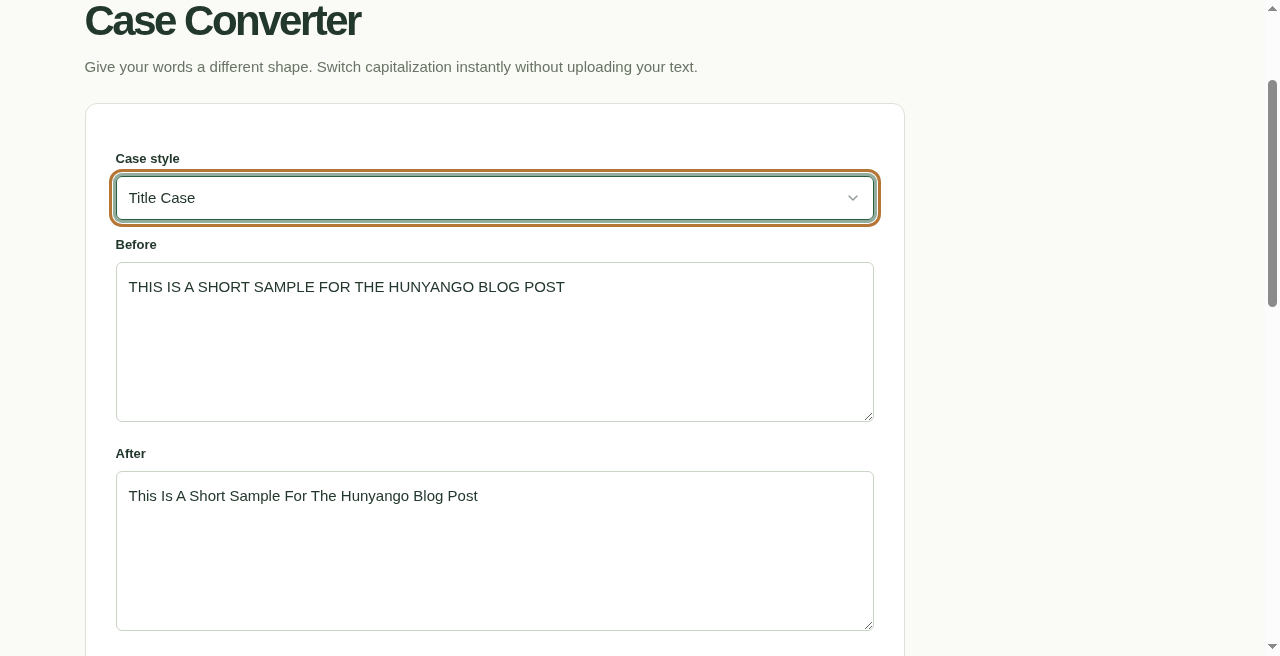
The Case Converter switches between uppercase, lowercase, title case, sentence case, and inverted case.
Compare the original and converted text, then copy the result. It changes capitalization rather than rewriting your words, so give names and abbreviations a quick check afterward.
4. Text Cleanup: Tidy Messy Copy and Paste
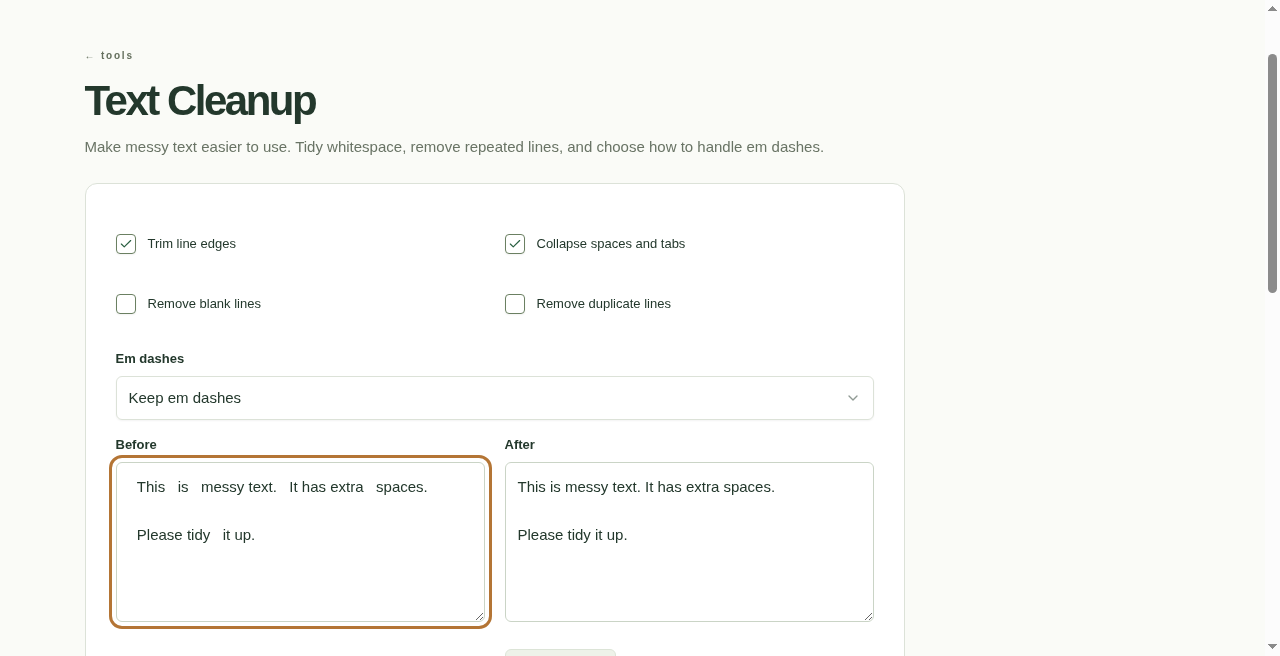
Text copied from different sources often arrives with extra spaces, repeated lines, and awkward formatting.
The Text Cleanup tool gives you options for cleaning whitespace, removing duplicate or blank lines, and handling em dashes.
A before-and-after view helps you check the changes before copying the result. Try it when tidying a list, preparing notes, or moving text between documents.
Online Calculators for Everyday Questions
5. Percentage Calculator: Discounts, Shares, and Changes
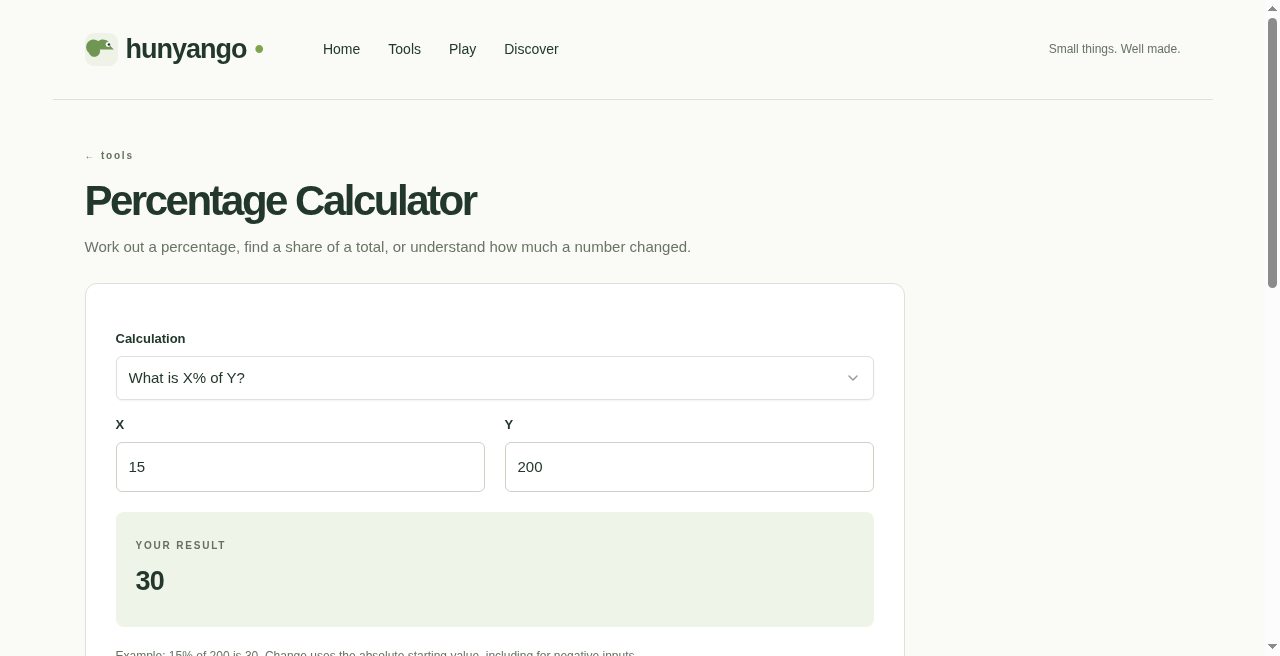
What is 15% of 200? What percentage is one number of another? How much did a value increase?
The Percentage Calculator handles all three.
For example, a 15% discount on 200 saves you 30. A change from 80 to 100 is a 25% increase. Choose the calculation you need and enter the numbers.
6. Date Difference: Count the Days Between Two Dates
Planning a trip, checking a project timeline, or counting down to an event?
The Date Difference calculator works out the calendar days between two dates. You can also choose to count both the start and end dates.
That makes the counting convention explicit—useful when “days between” and “days including both dates” would give different answers.

7. Unit Converter: Switch Measurements Quickly
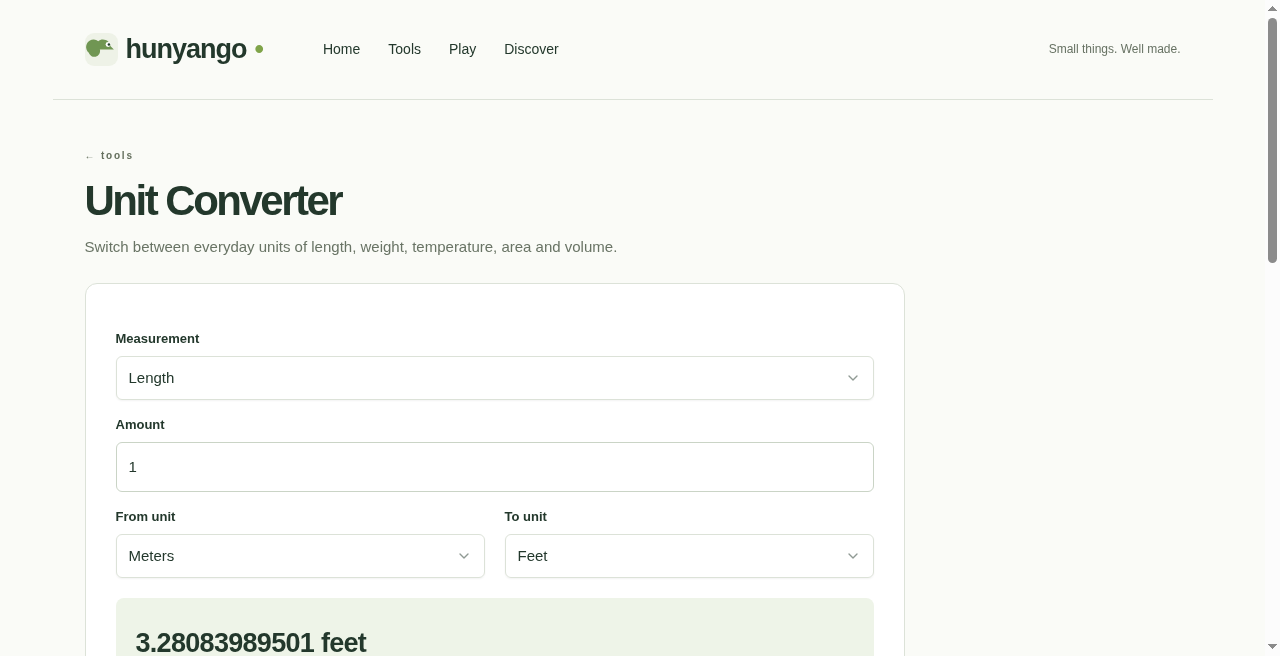
The Unit Converter covers length, weight, temperature, area, and volume.
Use it to understand a measurement in an article, compare dimensions, or translate a temperature into a scale you recognize. Choose the units, enter an amount, and swap the direction when needed.
8. Tip & Bill Split: Divide the Total Down to the Cent
Group meals are more enjoyable when settling the bill is straightforward.
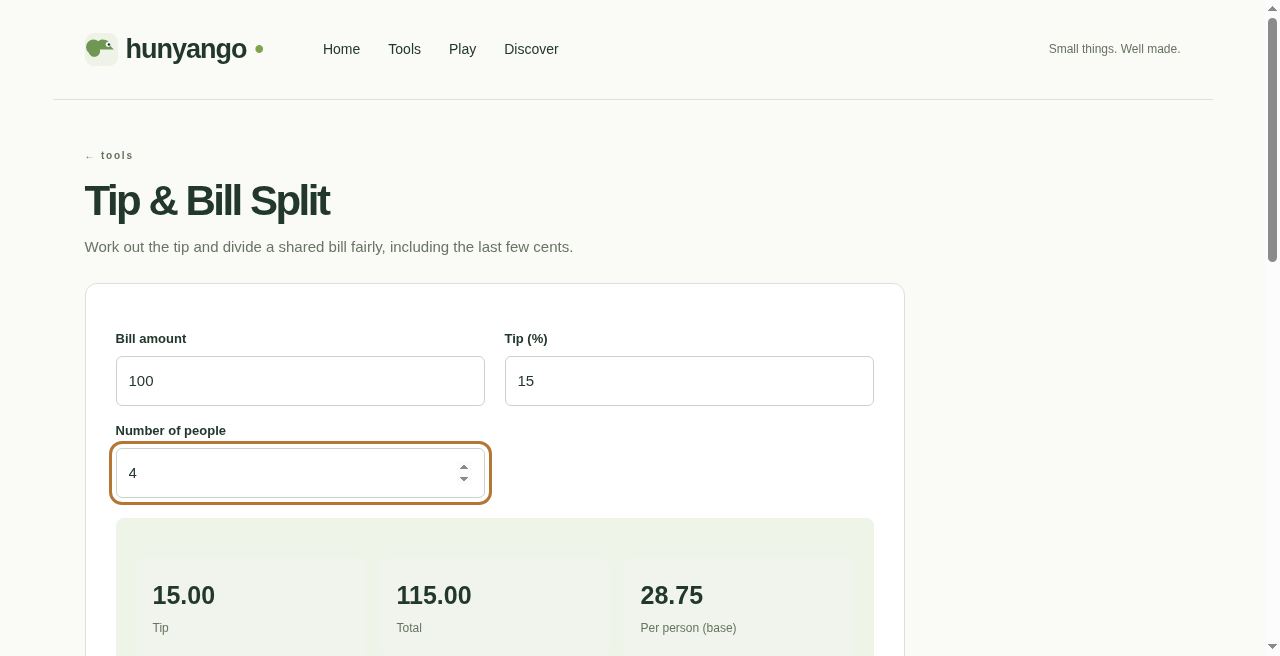
The Tip & Bill Split calculator helps calculate the tip and divide the total between people. It accounts for rounding so the individual shares add up to the full amount.
It’s a small tool for a familiar end-of-dinner question: “How much does everyone owe?”
Tools for Decisions and Focus
9. Random Picker: Make a Small Decision
Tea or coffee? Which movie should you watch? Which activity goes first?
The Random Picker lets you choose from a list, flip a coin, or get a yes-or-no result.
For lists, you can combine duplicate options and remove each selected option as you go. That’s useful for choosing an order or making several picks without repeating the same entry.

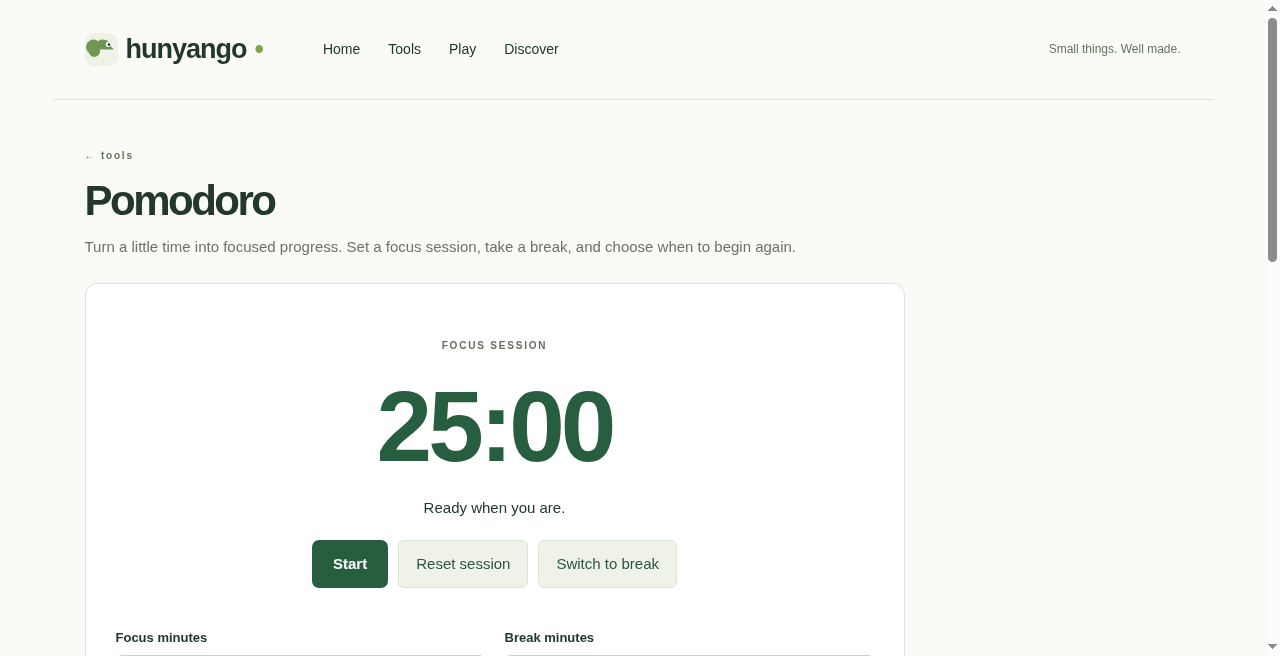
10. Pomodoro Timer: Give a Task Some Focused Time
Sometimes the hardest part of a task is getting started.
The Pomodoro timer lets you set focus and break durations, start a session, pause it, and reset when needed.
Your settings and session timing stay in your browser, helping the timer pick up correctly after a reload.
Try a focused writing session, a short study block, or a few minutes dedicated to the task you’ve been putting off.
Four Browser Games for a Quick Break

11. Chroma Glide: A Flying Game With a Chameleon Twist
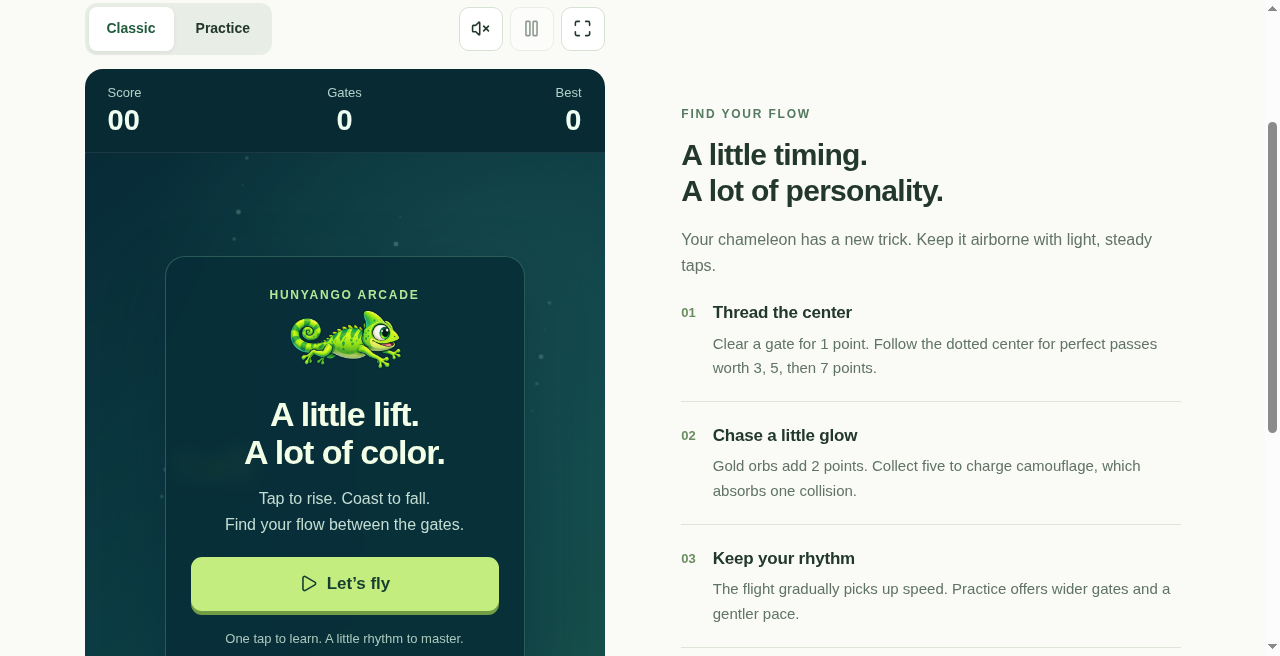
Meet Hunyango’s newest game: Chroma Glide.
If you enjoy the tap-to-fly challenge of games like Flappy Bird, the basic movement will feel familiar: tap to rise, coast to fall, and steer through the gaps.
Here, your character is a bright green chameleon—and there’s more to aim for than simply surviving:
- Perfect passes: Follow the center of a gate to earn bonus points.
- Flow combos: Chain precise passes for bigger rewards.
- Glow orbs: Collect them for extra points and camouflage charge.
- Camouflage shields: Charge a shield to absorb one collision.
- Practice mode: Learn with wider gates and a gentler pace.
- Personal bests: Keep separate records for Classic and Practice.
The flight gradually gets faster, giving you room to learn before the challenge builds. You can pause, replay immediately, and switch optional sound on or off.
On a phone, tap the play area. With a keyboard, use Space or the Up Arrow to flap.
Try your first flight in Chroma Glide.
12. Color Shift: Match Before the Moment Passes
The Color Shift game gives you 60 seconds to match as many target colors and symbols as possible.
Successful matches increase your score and shorten the reaction window. Symbols provide another way to identify the correct tile, so the challenge doesn’t rely on color alone.
It’s a quick game when you have a minute and want something simple to jump into.

13. Memory: See How Long You Can Follow the Sequence
In Memory, you watch a sequence of highlighted tiles and repeat it.
Each successful round adds another tile. Numbers and symbols help you follow the pattern as it grows.
The rules are easy to understand. Keeping the next sequence straight is the challenge.

14. Daily Trivia: Five Questions and Something to Learn
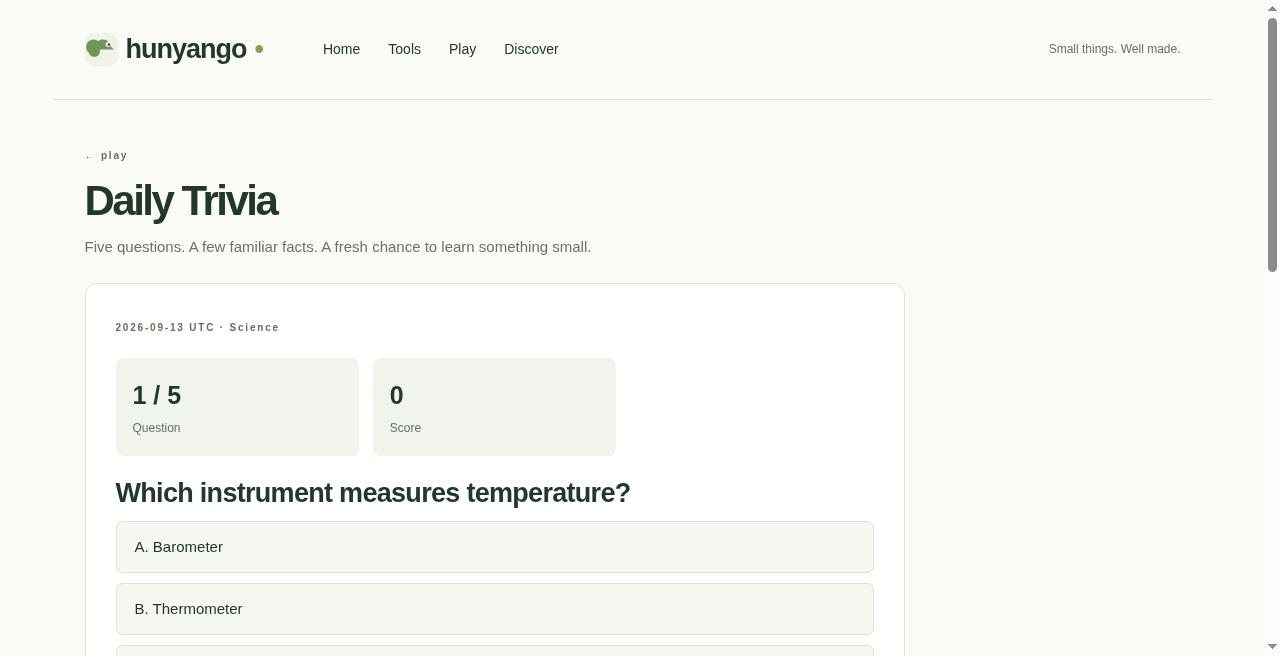
The Daily Trivia game offers a five-question challenge with explanations after each answer.
The daily selection changes at midnight UTC using a rotating question bank. After finishing, you can play a practice quiz without replacing your daily result.
It’s a short break with a little general knowledge along the way.
Gift Finder: Get Past “I Have No Idea What to Buy”
15. Find a Thoughtful Starting Point
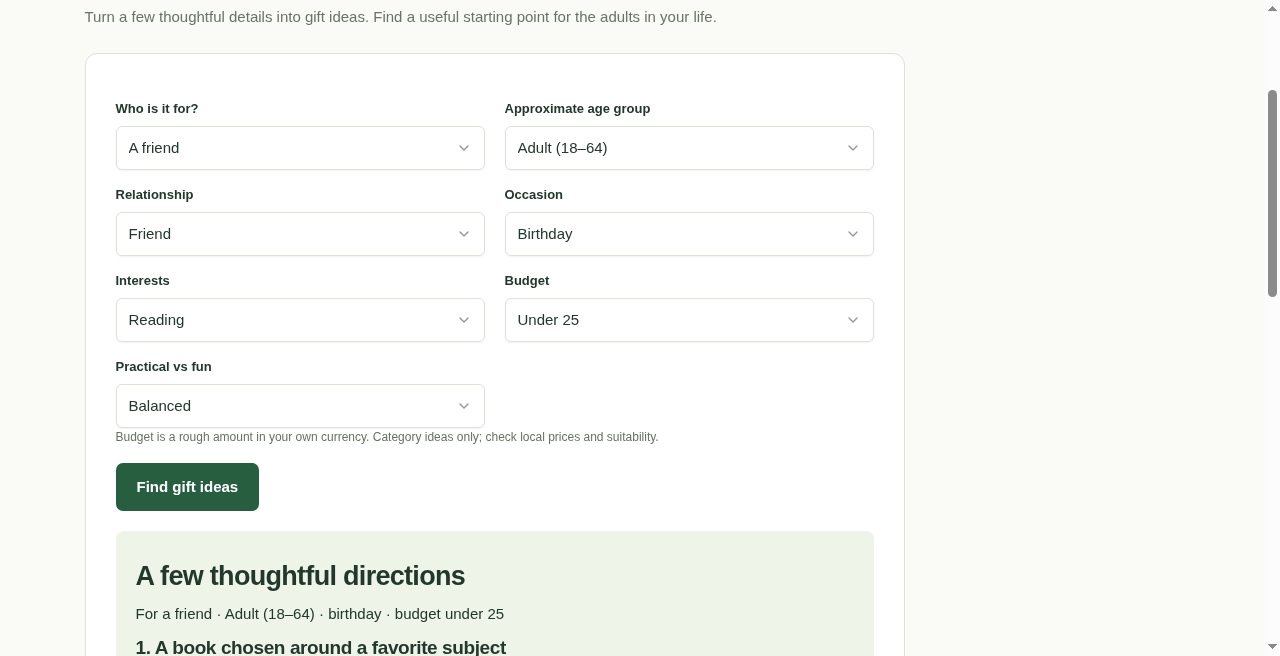
The Gift Finder helps you explore gift ideas for adults based on the recipient, occasion, interests, budget, and preference for practical or fun gifts.
Someone who enjoys cooking might appreciate a useful utensil, a small spice collection, or a cooking experience. A reader might prefer a reading accessory or a bookshop visit.
These are gift categories and ideas, rather than live product listings or verified prices. Use them to find a direction, then compare suitable options locally.
A Simple Way to Try Hunyango Today
You don’t need to explore everything at once. Start with something you already need:
Writing something? Check it with Word Counter, tidy it with Text Cleanup, and adjust the capitalization with Case Converter.
Organizing your day? Check a date interval, make a small decision with Random Picker, and start a focused Pomodoro session.
Ready for a break? Fly through a few gates in Chroma Glide, test a sequence in Memory, or answer today’s trivia questions.
The point is to make Hunyango useful enough that you remember it the next time one of these little tasks comes up.
Frequently Asked Questions
Is Hunyango free to use?
The current collection is free, with no payments or subscriptions required for its tools and games.
Do I need to download an app?
No. Hunyango runs in a web browser and is designed for desktop and mobile use.
Does Hunyango save the text I enter?
The text tools process your input in your browser rather than uploading or saving it. QR content is also generated on your device.
Some features use local browser storage, including game best scores, daily trivia completion, and Pomodoro settings and timing. Those records aren’t synchronized across devices. See the Privacy Policy for details.
Which feature should I try first?
Start with Word Counter or QR Generator if you have a task to finish. If you’re here for something playful, try Chroma Glide’s Practice mode.
Find Your Favorite Shape
Hunyango brings useful little tasks and playful little breaks together in one place.
Create something worth sharing. Make a calculation clearer. Give a task your attention. Then see how far a chameleon can fly.
Visit Hunyango.com, try a feature, and bookmark the ones you’ll want again.
Have an idea for another useful tool or game? I’d love to hear it.